ibis Paint X
- 4.5
- Rating
- 100.00M
- Installs
- Free
- Price
 Analysis by App-foxy
When I want to sketch an idea quickly, I prefer an app that gets out of the way instead of turning a simple drawing into a setup project. That is the main reason ibis Paint X caught my attention. It is a free art and design app from ibis inc. for Android and iOS, aimed at drawing, painting, lettering, and illustration rather than photo editing or general image management. After spending time with it, I see it as a surprisingly capable mobile studio with enough depth for serious practice, although its large toolset can feel crowded when I only want to make a quick mark.
The app has been available since February 27, 2014, and its reach is easy to understand: it has passed 100 million installs and holds a 4.5 average from around 2.8 million ratings. Those figures do not replace hands-on testing, but they do reflect a product that has become familiar to a very large drawing community. The current version is 13.1.16, and it runs on Android 7.0 or later. It is free to install, with optional purchases ranging from $2.99 to $27.99 per item.
What it feels like to draw with ibis Paint X
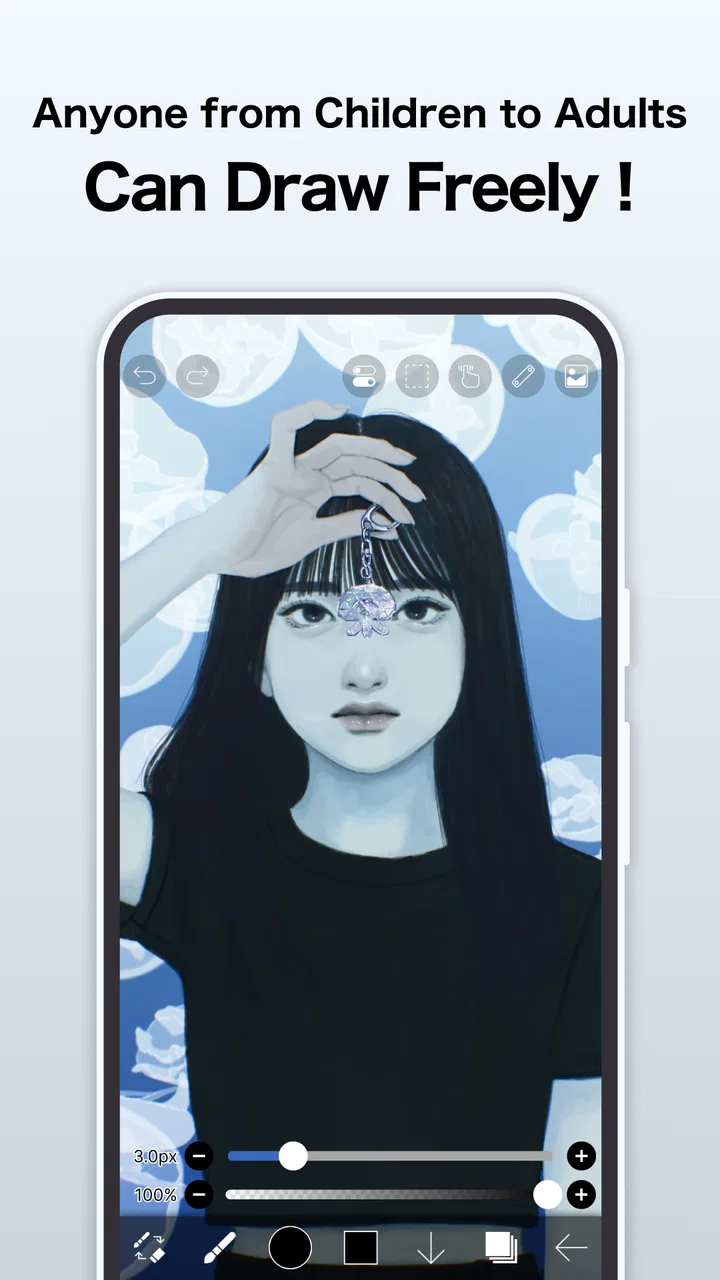
The first thing I noticed is that the app is built around immediate access to the canvas. The interface places drawing tools, brush controls, colors, and editing actions close to the work area, so I can move from a blank page to a rough sketch without navigating through several unrelated screens. That suits the app’s central promise: it is designed to let me concentrate on making an image.
In-Depth Coverage of ibis Paint X
That convenience comes with a learning curve. A beginner may see many icons before understanding which ones matter for a particular task. I would not call the layout confusing once I had used it for a while, but it is denser than a basic doodling app. The reward is that the same screen can support a loose pencil sketch, a clean line drawing, a painted illustration, or hand lettering without forcing me into a completely different workflow.
For a realistic everyday example, I could use it while commuting to turn a small idea into a character sketch. I would start with a rough layer, lower the visual importance of that draft, add cleaner lines above it, and then use separate areas for color and shading. Later, I could return to the sketch without repainting the whole image. That kind of separation is much more useful than simply having a large collection of brushes.
Brush choice also affects the experience more than a store summary suggests. A soft brush is useful for broad color and gentle transitions, while a sharper tool gives line work a more deliberate edge. I found it helpful to test a brush on an empty area before committing to a finished section, because the way a stroke responds to finger movement can vary considerably. On a phone, this small habit prevents a lot of accidental cleanup.
The app is particularly comfortable for people who already think in layers. I can keep a construction sketch apart from the final outline, isolate a background from a character, and make color experiments without permanently changing the underlying drawing. This makes revisions less stressful. It also means I need a little discipline: if I create layers without naming or organizing them, a detailed illustration can become difficult to manage.
A workflow that works better than random tool tapping
My preferred workflow is deliberately simple. I begin with a rough drawing, establish the main shapes, and only then worry about the final line quality. Once the structure looks right, I add color on separate layers and reserve another layer for shadows or highlights. This order keeps me from polishing details that may later need to move.
A useful but easy-to-miss habit is to use the undo history as part of the drawing process rather than treating it only as an emergency button. When I try a stroke with a different pressure or speed, I can compare the result and remove the weaker attempt immediately. That makes experimentation cheaper, especially on a small phone screen where precision is harder than on a tablet.
I also recommend zooming in only for the part that needs precision, then zooming back out regularly. Working too close for too long can make a line look excellent in isolation while damaging the proportions of the whole image. ibis Paint X gives me enough flexibility to switch between broad composition and small corrections, but the app cannot prevent the common artist mistake of losing sight of the overall picture.
For lettering, I would use a separate layer for each word or major phrase when the design is still changing. That makes spacing adjustments less destructive than drawing all the text on one permanent layer. It is not the fastest approach for a casual note, but it is valuable for poster-style sketches, thumbnails, and social graphics where placement matters as much as the letters themselves.
Who benefits most from the feature depth
Beginners can use the app successfully, but I think its strongest audience is the person who has outgrown a simple sketchpad and does not want to carry a desktop setup everywhere. Students can practice anatomy, perspective, and color studies. Hobby artists can develop illustrations in short sessions. Comic and character artists can separate roughs, inks, fills, and effects in a way that supports repeated edits.
It is also useful for visual planning. I can sketch a room arrangement, annotate a rough product idea, design a simple logo concept, or map out a tattoo idea before discussing it with someone else. In those cases, the value is not a polished final image. The value is being able to communicate shape, placement, and mood quickly.
You May Also Like

 AccuWeather: Weather Radar
AccuWeather Review: A Quick, Clear Forecast for Everyday Decisions
For everyday plans, the best forecast is the one you can understand quickly. AccuWeather makes rain timing, radar, and local conditions easy to act on, with a few trade-offs.

 Hill Climb Racing
Why Hill Climb Racing Still Turns Crashes Into One More Run
A tiny car, a bumpy hill and one more upgrade: Hill Climb Racing keeps resurfacing because its simple chaos makes every near-miss feel personal.

 AliExpress - Shopping App
AliExpress Makes Global Shopping Feel Personal, but Shoppers Bear the Risk
AliExpress turns a global marketplace into a pocket-sized discovery engine. Its reach is useful, its shopping loop compelling, and its trade-offs easy to miss.

 Lords Mobile: Kingdom Wars
Lords Mobile Is a Kingdom-Building Routine, Not a Quick Match
A case-by-case verdict on the building, battles, device demands, and social commitments that make Lords Mobile rewarding for some players and exhausting for others.

 PDF Scanner app - TapScanner
TapScanner Makes Paperwork Easier to Capture, Check, and Share
TapScanner makes scanning with a phone feel less like a rescue operation and more like a dependable step in getting work done. Its capture tools are useful, though not flawless.

 Block Blast!
Block Blast! Shows How Much a Puzzle Game Can Leave Out
A quiet grid game shows why puzzle players increasingly value instant clarity, repeatable skill and low-pressure play—and where the genre still needs to catch up.
More From Our News Desk
View All News


On the other hand, I would not choose it as my first recommendation for someone who only wants to crop photos, add filters, or make a quick collage. Those tasks belong more naturally to a photo editor or a lightweight design tool. I also would not expect a phone-based drawing app to replace a full desktop illustration workflow for every professional project. Screen size, input comfort, file handling, and long-session ergonomics still matter.
Trust starts with visible choices
Because this is an app where I may create personal sketches, private notes, or unfinished client ideas, I pay attention to more than brushes. I want to know what I am choosing when the app presents account, purchase, sharing, or other service-related options. My practical advice is to read each prompt instead of accepting it automatically, especially when moving from local drawing work toward any feature that involves an online service or another person.
The app’s free price makes it easy to start without a financial commitment, while in-app purchases provide optional paid items between $2.99 and $27.99 each. I appreciate being able to test the core experience first, but I would still check the purchase screen carefully before confirming anything. A free download does not mean every available brush, convenience, or extra is included at no cost.
That distinction matters for younger users as well. The content rating is Everyone, which makes the app broadly approachable, but a family should still discuss purchases and sharing choices. An age label describes the intended content level; it does not replace sensible device-level purchase controls or a conversation about what a child should upload or send.
I also treat account controls as a user decision rather than an automatic requirement. If I am only sketching offline for myself, I prefer to keep my workflow as simple and local as the available options allow. If I need to move work between devices, participate in a community, or use an online-related function, I first consider whether that convenience is worth the extra exposure of the particular drawing.
Where privacy deserves extra attention
Drawings can contain more personal information than people realize. A casual sketch might include a face, a school uniform, a home layout, a handwritten name, or a screenshot used as reference. Before sharing anything, I inspect the complete canvas for details that were not meant to leave my device. Cropping or removing a hidden draft layer is worth the extra minute if the image is going to another person or service.
I am especially careful with work made for someone else. A client concept, a child’s drawing, or an unreleased personal project should not be treated like a disposable doodle. I keep the audience in mind before using any sharing or community-oriented option, and I avoid assuming that a private intention automatically guarantees a private result. The safest habit is to make an active choice each time rather than relying on memory from a previous screen.
For account and data questions, I would read the app’s current privacy information and the permission prompts shown on my own device. Those screens are the right place to check what access is being requested, what choices are available, and whether a setting can be changed later. I would not judge trust from the number of tools alone. Good control means knowing what I am enabling before I enable it.
This is also where the app’s popularity should be kept in perspective. A large user base can make a product feel familiar, but it does not mean every user has the same privacy needs. Someone making casual fan art has a different risk profile from an illustrator working with identifying references or confidential material. The workflow should change accordingly.
Small limitations that affect real sessions
The biggest friction for me is the amount of choice. When I am focused, the range of tools feels empowering; when I am tired, it can slow me down. I sometimes spend too long deciding which brush or adjustment to use when a basic option would have been enough. New users should resist the urge to learn everything at once. A small personal set of dependable tools is more useful than memorizing every icon.
Phone drawing also has physical limits. Finger drawing can be enjoyable for broad sketches, but precise line work is easier with a compatible stylus or a larger screen. If I am working on a detailed illustration for a long period, hand position and screen size become more important than the app’s feature list. A tablet-oriented drawing application may be a better fit when comfort and precision are the main priorities.
There is a trade-off between flexibility and simplicity here. A very basic sketch app may open faster and feel calmer, while ibis Paint X gives me more room to revise and build a finished image. I would choose the simpler alternative for a quick visual note and this app for work that benefits from layers, repeated corrections, and a more deliberate finish.
The free model can also influence how I plan my workflow. I can begin without paying, which is useful for testing whether the interface suits me. Before buying anything, I would spend enough time with the free experience to identify the exact limitation affecting my work. Paying for a feature I rarely use is not an improvement, and the listed purchase range makes it sensible to decide carefully rather than collecting extras impulsively.
How it compares with familiar alternatives
Compared with a basic phone sketchpad, ibis Paint X offers a more developed illustration process. I get more room to organize a drawing, refine lines, and revisit earlier decisions. The cost of that advantage is a busier interface and a greater need to understand how the tools relate to one another.
Compared with a desktop painting program, it is easier to carry and quicker to open for short sessions. I can capture an idea while away from my desk instead of waiting until I have the right setup. A desktop remains preferable for very large projects, extended work, keyboard-heavy editing, or a production process that depends on a broad monitor and specialized hardware.
Compared with a general design app, this feels more natural when the image begins as a hand-drawn mark. A design tool may be better for arranging polished text, templates, and ready-made components. I would use ibis Paint X when drawing itself is the central activity, and switch tools when layout precision or rapid template work becomes the priority.
Should you install it?
I recommend it to anyone who wants a serious mobile drawing space without paying before understanding the workflow. It is a strong choice for learners, hobby illustrators, character artists, and people who need to turn visual ideas into editable sketches. The Everyone rating makes it approachable, while the depth gives motivated users plenty of room to grow.
I would skip it if I want a nearly empty interface, only need photo adjustments, or dislike spending time organizing layers and learning controls. I would also think twice before using a phone as my main studio for long professional sessions. The app can be capable and still be less comfortable than a larger-screen alternative.
After using it, my view is positive but measured. The best part is not simply the number of brushes or the ability to paint on a phone. It is the way a rough thought can become an editable drawing through a workflow that supports corrections instead of punishing them. The main responsibility remains with me: I need to manage layers, review sharing decisions, watch purchase prompts, and protect sensitive references.
For a free art and design app developed by ibis inc., this is an unusually substantial starting point. I would install it, spend a few sessions learning a small set of tools, and decide later whether any optional purchase genuinely improves my work. If that gradual approach sounds right to you, ibis Paint X is worth trying; just choose its controls and sharing options with the same care you bring to the artwork itself.
FAQs for ibis Paint X
01What is ibis Paint X, and what are its main features?
ibis Paint X is a versatile drawing app designed for both beginners and professionals. It offers over 2,500 materials, 800 fonts, 379 brushes, and 27 blending modes. The app also includes features like stroke stabilization, rulers, and clipping masks, making it an excellent choice for digital artists looking for a comprehensive toolkit.
02Is ibis Paint X free to use?
Yes, ibis Paint X is free to download and use, but it also offers in-app purchases. These purchases include additional features such as removing ads and accessing premium brushes. Users can still enjoy a wide range of functionalities without paying, but investing in the premium version enhances the overall experience.
03Can I use ibis Paint X on multiple devices?
ibis Paint X can be used on multiple devices, but users need to ensure they are logged into the same account to access their saved work and preferences. The app supports both Android and iOS platforms, allowing for seamless transitions between different devices within the same ecosystem.
04Does ibis Paint X support video tutorials and community interaction?
Yes, ibis Paint X provides an engaging platform for learning and sharing. It includes video tutorials to help users learn various techniques. Additionally, the app has a community feature where users can share their artwork and gain inspiration from others, fostering a collaborative environment.
05What are the system requirements for ibis Paint X?
ibis Paint X requires Android version 4.1 or later and iOS version 11.0 or later. It is compatible with smartphones and tablets. For optimal performance, it is recommended to have a device with a decent amount of RAM and a good processor to handle the app's extensive features smoothly.
Pros
- Extensive brush variety enhances creativity.
- User-friendly interface for easy navigation.
- Supports layers like professional software.
- Community features for sharing and learning.
- Regular updates with new tools and features.
Cons
- Ads can be intrusive during use.
- Some features require in-app purchases.
- Resource-intensive on older devices.
- Limited free storage for cloud projects.
- Occasional lag with high-resolution files.

ibis Paint X
Gallery